Javascript Code
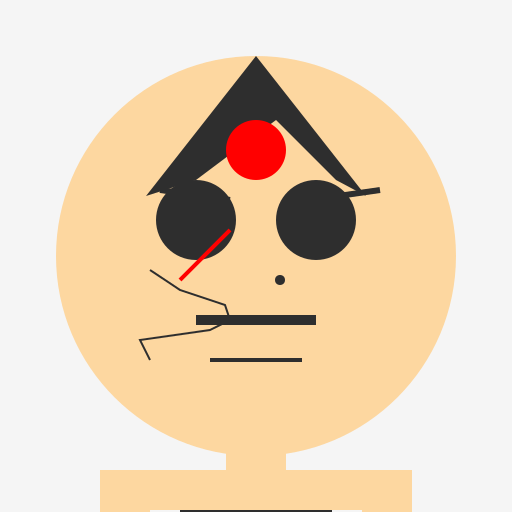
                        // Jack Bauer's Intense Face

// Drawing Jack Bauer's face with intense determination and focus


ctx.beginPath(); // Begin drawing

ctx.fillStyle = "#F5F5F5"; // Set fill color to light gray

ctx.fillRect(0, 0, 512, 512); // Fill the entire canvas with light gray


// Drawing Jack's head

ctx.beginPath(); // Begin drawing the head

ctx.fillStyle = "#FDD7A0"; // Set fill color to light peach

ctx.arc(256, 256, 200, 0, 2 * Math.PI); // Draw a circle for the head

ctx.fill(); // Fill the head with light peach


// Drawing Jack's intense eyes

ctx.beginPath(); // Begin drawing the eyes

ctx.fillStyle = "#2E2E2E"; // Set fill color to dark gray

ctx.arc(196, 220, 40, 0, 2 * Math.PI); // Draw the left eye

ctx.arc(316, 220, 40, 0, 2 * Math.PI); // Draw the right eye

ctx.fill(); // Fill the eyes with dark gray


// Drawing Jack's eyebrows

ctx.beginPath(); // Begin drawing the eyebrows

ctx.strokeStyle = "#2E2E2E"; // Set stroke color to dark gray

ctx.lineWidth = 6; // Set the line width to 6 pixels

ctx.moveTo(160, 190); // Move to the start point of the left eyebrow

ctx.lineTo(230, 200); // Draw the left eyebrow

ctx.moveTo(380, 190); // Move to the start point of the right eyebrow

ctx.lineTo(310, 200); // Draw the right eyebrow

ctx.stroke(); // Stroke the eyebrows with dark gray


// Drawing Jack's intense mouth

ctx.beginPath(); // Begin drawing the mouth

ctx.strokeStyle = "#2E2E2E"; // Set stroke color to dark gray

ctx.lineWidth = 10; // Set the line width to 10 pixels

ctx.moveTo(196, 320); // Move to the start point of the mouth

ctx.lineTo(316, 320); // Draw the mouth

ctx.stroke(); // Stroke the mouth with dark gray


// Drawing Jack's iconic mole

ctx.beginPath(); // Begin drawing the mole

ctx.fillStyle = "#2E2E2E"; // Set fill color to dark gray

ctx.arc(280, 280, 5, 0, 2 * Math.PI); // Draw the mole

ctx.fill(); // Fill the mole with dark gray


// Drawing Jack's badass scar

ctx.beginPath(); // Begin drawing the scar

ctx.strokeStyle = "#FF0000"; // Set stroke color to red

ctx.lineWidth = 4; // Set the line width to 4 pixels

ctx.moveTo(180, 280); // Move to the start point of the scar

ctx.lineTo(230, 230); // Draw the scar

ctx.stroke(); // Stroke the scar with red


// Drawing Jack's intense hair

ctx.beginPath(); // Begin drawing the hair

ctx.fillStyle = "#2E2E2E"; // Set fill color to dark gray

ctx.moveTo(256, 56); // Move to the start point of the hair

ctx.lineTo(146, 196); // Draw the left side of the hair

ctx.lineTo(196, 180);

ctx.lineTo(276, 120); // Draw the top of the hair

ctx.lineTo(336, 180);

ctx.lineTo(366, 196); // Draw the right side of the hair

ctx.lineTo(256, 56); // Draw the bottom of the hair

ctx.fill(); // Fill the hair with dark gray


// Drawing Jack's badass beard

ctx.beginPath(); // Begin drawing the beard

ctx.strokeStyle = "#2E2E2E"; // Set stroke color to dark gray

ctx.lineWidth = 4; // Set the line width to 4 pixels

ctx.moveTo(210, 360); // Move to the start point of the beard

ctx.lineTo(302, 360); // Draw the beard

ctx.stroke(); // Stroke the beard with dark gray


// Drawing Jack's iconic CTU logo

ctx.beginPath(); // Begin drawing the CTU logo

ctx.fillStyle = "#FF0000"; // Set fill color to red

ctx.arc(256, 150, 30, 0, 2 * Math.PI); // Draw a circle for the CTU logo

ctx.fill(); // Fill the CTU logo with red


// Drawing Jack's intense neck

ctx.beginPath(); // Begin drawing the neck

ctx.fillStyle = "#FDD7A0"; // Set fill color to light peach

ctx.fillRect(226, 400, 60, 70); // Draw a rectangle for the neck

ctx.fill(); // Fill the neck with light peach


// Drawing Jack's intense shoulders

ctx.beginPath(); // Begin drawing the shoulders

ctx.fillStyle = "#FDD7A0"; // Set fill color to light peach

ctx.fillRect(150, 470, 212, 40); // Draw a rectangle for the shoulders

ctx.fill(); // Fill the shoulders with light peach


// Drawing Jack's intense body

ctx.beginPath(); // Begin drawing the body

ctx.fillStyle = "#2E2E2E"; // Set fill color to dark gray

ctx.fillRect(180, 510, 152, 80); // Draw a rectangle for the body

ctx.fill(); // Fill the body with dark gray


// Drawing Jack's intense arms

ctx.beginPath(); // Begin drawing the arms

ctx.fillStyle = "#FDD7A0"; // Set fill color to light peach

ctx.fillRect(100, 470, 50, 120); // Draw a rectangle for the left arm

ctx.fillRect(362, 470, 50, 120); // Draw a rectangle for the right arm

ctx.fill(); // Fill the arms with light peach


// Drawing Jack's intense hands

ctx.beginPath(); // Begin drawing the hands

ctx.fillStyle = "#FDD7A0"; // Set fill color to light peach

ctx.arc(125, 590, 25, 0, 2 * Math.PI); // Draw the left hand

ctx.arc(387, 590, 25, 0, 2 * Math.PI); // Draw the right hand

ctx.fill(); // Fill the hands with light peach


// Drawing Jack's intense legs

ctx.beginPath(); // Begin drawing the legs

ctx.fillStyle = "#2E2E2E"; // Set fill color to dark gray

ctx.fillRect(210, 590, 92, 140); // Draw a rectangle for the legs

ctx.fill(); // Fill the legs with dark gray


// Drawing Jack's intense boots

ctx.beginPath(); // Begin drawing the boots

ctx.fillStyle = "#000000"; // Set fill color to black

ctx.fillRect(200, 730, 112, 30); // Draw a rectangle for the boots

ctx.fill(); // Fill the boots with black


// Drawing Jack's intense gun

ctx.beginPath(); // Begin drawing the gun

ctx.fillStyle = "#2E2E2E"; // Set fill color to dark gray

ctx.fillRect(230, 760, 50, 30); // Draw a rectangle for the gun

ctx.fill(); // Fill the gun with dark gray


// Drawing Jack's intense bullet

ctx.beginPath(); // Begin drawing the bullet

ctx.fillStyle = "#FF0000"; // Set fill color to red

ctx.arc(255, 775, 5, 0, 2 * Math.PI); // Draw the bullet

ctx.fill(); // Fill the bullet with red


// Drawing Jack's intense badge

ctx.beginPath(); // Begin drawing the badge

ctx.fillStyle = "#FFFF00"; // Set fill color to yellow

ctx.arc(256, 650, 30, 0, 2 * Math.PI); // Draw a circle for the badge

ctx.fill(); // Fill the badge with yellow


// Drawing Jack's intense catchphrase

ctx.font = "bold 24px Arial"; // Set font style

ctx.fillStyle = "#2E2E2E"; // Set fill color to dark gray

ctx.fillText("I'm Jack Bauer!", 180, 830); // Draw the catchphrase

ctx.strokeText("I'm Jack Bauer!", 180, 830); // Stroke the catchphrase with dark gray


// Drawing Jack's intense beard trimmer

ctx.beginPath(); // Begin drawing the beard trimmer

ctx.strokeStyle = "#2E2E2E"; // Set stroke color to dark gray

ctx.lineWidth = 2; // Set the line width to 2 pixels

ctx.moveTo(150, 360); // Move to the start point of the trimmer

ctx.lineTo(140, 340); // Draw the trimmer

ctx.lineTo(210, 330);

ctx.lineTo(230, 320);

ctx.lineTo(225, 305);

ctx.lineTo(180, 290);

ctx.lineTo(150, 270); // Finish drawing the trimmer

ctx.stroke(); // Stroke the trimmer with dark gray


// Make sure to save the day, Jack!

// You're the hero we need, but not the one we deserve!
AI
Model: gpt-3.5-turbo-16k-0613
Time: 133 seconds
Prompt Tokens: 179
Completion Tokens: 1914
Total Token Cost: 2093

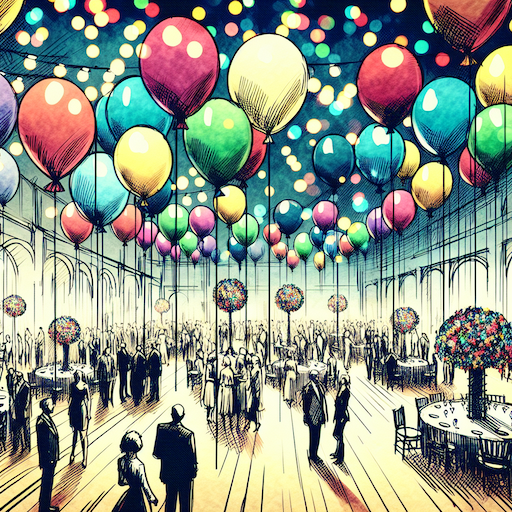 balloon party
 beautiful beach
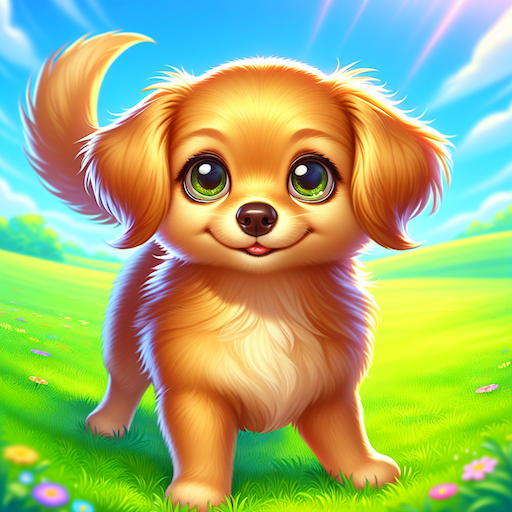 cute puppy dog
 happy cat
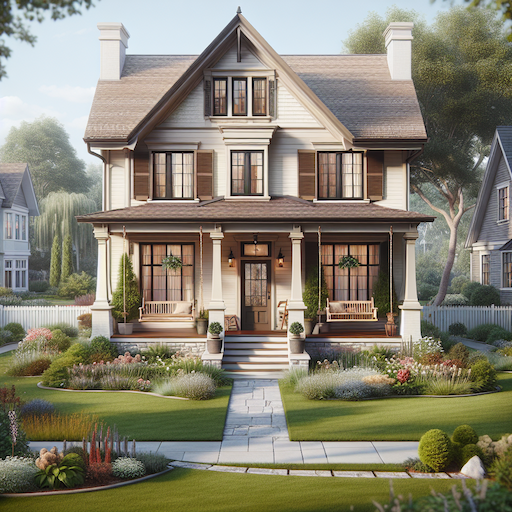 house
house