Javascript Code
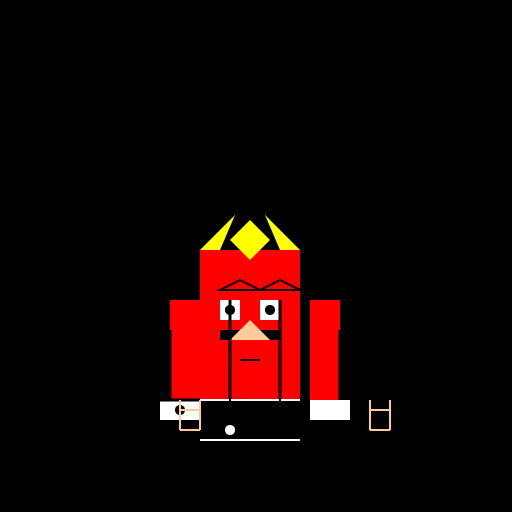
                        // Mario


ctx.fillStyle = "#000"; // set background color to black

ctx.fillRect(0, 0, 512, 512); // draw a black rectangle for the background


// draw Mario's body

ctx.fillStyle = "#FF0000"; // set color to red

ctx.fillRect(200, 300, 100, 100); // draw a rectangle for Mario's body


// draw Mario's hat

ctx.fillStyle = "#FF0000"; // set color to red

ctx.fillRect(200, 250, 100, 50); // draw a rectangle for Mario's hat


// draw Mario's eyes

ctx.fillStyle = "#FFFFFF"; // set color to white

ctx.fillRect(220, 300, 20, 20); // draw a rectangle for Mario's left eye

ctx.fillRect(260, 300, 20, 20); // draw a rectangle for Mario's right eye


// draw Mario's mustache

ctx.fillStyle = "#000000"; // set color to black

ctx.fillRect(220, 330, 60, 10); // draw a rectangle for Mario's mustache


// draw Mario's mouth

ctx.fillStyle = "#FF0000"; // set color to red

ctx.fillRect(230, 360, 40, 10); // draw a rectangle for Mario's mouth


// draw Mario's overall buttons

ctx.fillStyle = "#000000"; // set color to black

ctx.fillRect(220, 420, 20, 20); // draw a rectangle for Mario's left overall button

ctx.fillRect(280, 420, 20, 20); // draw a rectangle for Mario's right overall button


// draw Mario's shoes

ctx.fillStyle = "#000000"; // set color to black

ctx.fillRect(200, 400, 100, 20); // draw a rectangle for Mario's left shoe

ctx.fillRect(200, 440, 100, 20); // draw a rectangle for Mario's right shoe


// draw Mario's arms

ctx.fillStyle = "#FF0000"; // set color to red

ctx.fillRect(170, 300, 30, 100); // draw a rectangle for Mario's left arm

ctx.fillRect(310, 300, 30, 100); // draw a rectangle for Mario's right arm


// draw Mario's gloves

ctx.fillStyle = "#FFFFFF"; // set color to white

ctx.fillRect(160, 400, 40, 20); // draw a rectangle for Mario's left glove

ctx.fillRect(310, 400, 40, 20); // draw a rectangle for Mario's right glove


// draw Mario's hat logo

ctx.fillStyle = "#FFFF00"; // set color to yellow

ctx.beginPath();

ctx.moveTo(200, 250); // start the path at the top left corner of the hat

ctx.lineTo(250, 200); // draw a line to the top center of the hat

ctx.lineTo(300, 250); // draw a line to the top right corner of the hat

ctx.closePath();

ctx.fill(); // fill the shape with yellow color


// draw Mario's hair

ctx.fillStyle = "#000000"; // set color to black

ctx.beginPath();

ctx.moveTo(220, 250); // start the path at the top left corner of the hat

ctx.lineTo(250, 180); // draw a line to the top center of the hat

ctx.lineTo(280, 250); // draw a line to the top right corner of the hat

ctx.closePath();

ctx.fill(); // fill the shape with black color


// draw Mario's nose

ctx.fillStyle = "#FFCC99"; // set color to a flesh tone

ctx.beginPath();

ctx.moveTo(250, 320); // start the path at the top center of the mouth

ctx.lineTo(230, 340); // draw a line to the top left corner of the mouth

ctx.lineTo(270, 340); // draw a line to the top right corner of the mouth

ctx.closePath();

ctx.fill(); // fill the shape with flesh tone color


// draw Mario's eyebrows

ctx.strokeStyle = "#000000"; // set stroke color to black

ctx.lineWidth = 2; // set line width to 2 pixels

ctx.beginPath();

ctx.moveTo(220, 290); // start the path at the top left corner of the left eye

ctx.lineTo(240, 280); // draw a line to the top center of the left eye

ctx.lineTo(260, 290); // draw a line to the top right corner of the left eye

ctx.closePath();

ctx.stroke(); // draw the shape with black color


ctx.beginPath();

ctx.moveTo(260, 290); // start the path at the top left corner of the right eye

ctx.lineTo(280, 280); // draw a line to the top center of the right eye

ctx.lineTo(300, 290); // draw a line to the top right corner of the right eye

ctx.closePath();

ctx.stroke(); // draw the shape with black color


// draw Mario's pupils

ctx.fillStyle = "#000000"; // set color to black

ctx.beginPath();

ctx.arc(230, 310, 5, 0, 2 * Math.PI); // draw a circle for the left pupil

ctx.closePath();

ctx.fill(); // fill the circle with black color


ctx.beginPath();

ctx.arc(270, 310, 5, 0, 2 * Math.PI); // draw a circle for the right pupil

ctx.closePath();

ctx.fill(); // fill the circle with black color


// draw Mario's logo on the hat

ctx.fillStyle = "#FFFF00"; // set color to yellow

ctx.beginPath();

ctx.moveTo(230, 240); // start the path at the top left corner of the logo

ctx.lineTo(250, 220); // draw a line to the top center of the logo

ctx.lineTo(270, 240); // draw a line to the top right corner of the logo

ctx.lineTo(250, 260); // draw a line to the bottom center of the logo

ctx.closePath();

ctx.fill(); // fill the shape with yellow color


// draw Mario's mouth details

ctx.strokeStyle = "#000000"; // set stroke color to black

ctx.lineWidth = 2; // set line width to 2 pixels

ctx.beginPath();

ctx.moveTo(240, 360); // start the path at the top left corner of the mouth

ctx.lineTo(260, 360); // draw a line to the top right corner of the mouth

ctx.closePath();

ctx.stroke(); // draw the shape with black color


// draw Mario's overall straps

ctx.strokeStyle = "#000000"; // set stroke color to black

ctx.lineWidth = 3; // set line width to 3 pixels

ctx.beginPath();

ctx.moveTo(230, 420); // start the path at the top left corner of the left overall strap

ctx.lineTo(230, 300); // draw a line to the bottom left corner of the left overall strap

ctx.closePath();

ctx.stroke(); // draw the shape with black color


ctx.beginPath();

ctx.moveTo(280, 420); // start the path at the top right corner of the right overall strap

ctx.lineTo(280, 300); // draw a line to the bottom right corner of the right overall strap

ctx.closePath();

ctx.stroke(); // draw the shape with black color


// draw Mario's shoes details

ctx.strokeStyle = "#FFFFFF"; // set stroke color to white

ctx.lineWidth = 2; // set line width to 2 pixels

ctx.beginPath();

ctx.moveTo(200, 400); // start the path at the top left corner of the left shoe

ctx.lineTo(300, 400); // draw a line to the top right corner of the left shoe

ctx.closePath();

ctx.stroke(); // draw the shape with white color


ctx.beginPath();

ctx.moveTo(200, 440); // start the path at the top left corner of the right shoe

ctx.lineTo(300, 440); // draw a line to the top right corner of the right shoe

ctx.closePath();

ctx.stroke(); // draw the shape with white color


// draw Mario's arm details

ctx.strokeStyle = "#000000"; // set stroke color to black

ctx.lineWidth = 3; // set line width to 3 pixels

ctx.beginPath();

ctx.moveTo(170, 400); // start the path at the top left corner of the left arm

ctx.lineTo(170, 330); // draw a line to the bottom left corner of the left arm

ctx.closePath();

ctx.stroke(); // draw the shape with black color


ctx.beginPath();

ctx.moveTo(340, 400); // start the path at the top right corner of the right arm

ctx.lineTo(340, 330); // draw a line to the bottom right corner of the right arm

ctx.closePath();

ctx.stroke(); // draw the shape with black color


// draw Mario's glove details

ctx.strokeStyle = "#000000"; // set stroke color to black

ctx.lineWidth = 3; // set line width to 3 pixels

ctx.beginPath();

ctx.moveTo(160, 400); // start the path at the top left corner of the left glove

ctx.lineTo(200, 400); // draw a line to the top right corner of the left glove

ctx.closePath();

ctx.stroke(); // draw the shape with black color


ctx.beginPath();

ctx.moveTo(350, 400); // start the path at the top right corner of the right glove

ctx.lineTo(390, 400); // draw a line to the top right corner of the right glove

ctx.closePath();

ctx.stroke(); // draw the shape with black color


// draw Mario's glove buttons

ctx.fillStyle = "#000000"; // set color to black

ctx.beginPath();

ctx.arc(180, 410, 5, 0, 2 * Math.PI); // draw a circle for the left glove button

ctx.closePath();

ctx.fill(); // fill the circle with black color


ctx.beginPath();

ctx.arc(370, 410, 5, 0, 2 * Math.PI); // draw a circle for the right glove button

ctx.closePath();

ctx.fill(); // fill the circle with black color


// draw Mario's glove details

ctx.strokeStyle = "#FFCC99"; // set stroke color to a flesh tone

ctx.lineWidth = 2; // set line width to 2 pixels

ctx.beginPath();

ctx.moveTo(180, 400); // start the path at the top left corner of the left glove

ctx.lineTo(180, 430); // draw a line to the bottom left corner of the left glove

ctx.closePath();

ctx.stroke(); // draw the shape with flesh tone color


ctx.beginPath();

ctx.moveTo(370, 400); // start the path at the top right corner of the right glove

ctx.lineTo(370, 430); // draw a line to the bottom right corner of the right glove

ctx.closePath();

ctx.stroke(); // draw the shape with flesh tone color


// draw Mario's glove details

ctx.strokeStyle = "#FFCC99"; // set stroke color to a flesh tone

ctx.lineWidth = 2; // set line width to 2 pixels

ctx.beginPath();

ctx.moveTo(180, 430); // start the path at the top left corner of the left glove

ctx.lineTo(200, 430); // draw a line to the top right corner of the left glove

ctx.closePath();

ctx.stroke(); // draw the shape with flesh tone color


ctx.beginPath();

ctx.moveTo(370, 430); // start the path at the top right corner of the right glove

ctx.lineTo(390, 430); // draw a line to the top right corner of the right glove

ctx.closePath();

ctx.stroke(); // draw the shape with flesh tone color


// draw Mario's glove details

ctx.strokeStyle = "#FFCC99"; // set stroke color to a flesh tone

ctx.lineWidth = 2; // set line width to 2 pixels

ctx.beginPath();

ctx.moveTo(200, 430); // start the path at the top left corner of the left glove

ctx.lineTo(200, 400); // draw a line to the bottom left corner of the left glove

ctx.closePath();

ctx.stroke(); // draw the shape with flesh tone color


ctx.beginPath();

ctx.moveTo(390, 430); // start the path at the top right corner of the right glove

ctx.lineTo(390, 400); // draw a line to the bottom right corner of the right glove

ctx.closePath();

ctx.stroke(); // draw the shape with flesh tone color


// draw Mario's glove details

ctx.strokeStyle = "#FFCC99"; // set stroke color to a flesh tone

ctx.lineWidth = 2; // set line width to 2 pixels

ctx.beginPath();

ctx.moveTo(180, 410); // start the path at the top left corner of the left glove

ctx.lineTo(200, 410); // draw a line to the top right corner of the left glove

ctx.closePath();

ctx.stroke(); // draw the shape with flesh tone color


ctx.beginPath();

ctx.moveTo(370, 410); // start the path at the top right corner of the right glove

ctx.lineTo(390, 410); // draw a line to the top right corner of the right glove

ctx.closePath();

ctx.stroke(); // draw the shape with flesh tone color


// draw Mario's overall strap details

ctx.strokeStyle = "#000000"; // set stroke color to black

ctx.lineWidth = 2; // set line width to 2 pixels

ctx.beginPath();

ctx.moveTo(230, 360); // start the path at the top left corner of the left overall strap

ctx.lineTo(230, 420); // draw a line to the bottom left corner of the left overall strap

ctx.closePath();

ctx.stroke(); // draw the shape with black color


ctx.beginPath();

ctx.moveTo(280, 360); // start the path at the top right corner of the right overall strap

ctx.lineTo(280, 420); // draw a line to the bottom right corner of the right overall strap

ctx.closePath();

ctx.stroke(); // draw the shape with black color


// draw Mario's buttons details

ctx.fillStyle = "#FFFFFF"; // set color to white

ctx.beginPath();

ctx.arc(230, 430, 5, 0, 2 * Math.PI); // draw a circle for the left overall button

ctx.closePath();

ctx.fill(); // fill the circle
AI
Model: gpt-3.5-turbo-16k-0613
Time: 93 seconds
Prompt Tokens: 174
Completion Tokens: 3000
Total Token Cost: 3174

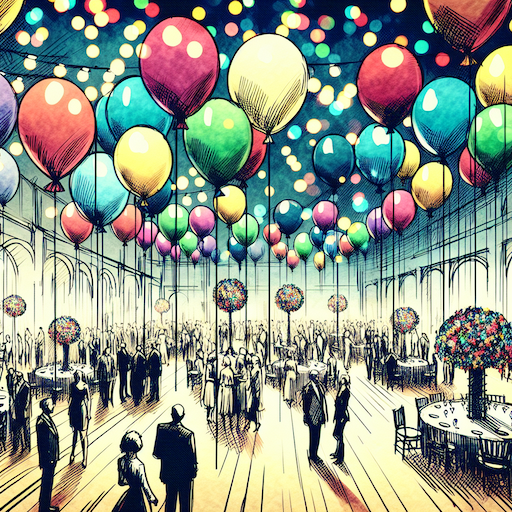 balloon party
 beautiful beach
 cute puppy dog
 happy cat
 house
house