
Javascript Code
                        // Mario Odyssey


// Drawing the blue sky background

ctx.fillStyle = "#87CEEB"; // Setting the fill color to a nice sky blue

ctx.fillRect(0, 0, 512, 512); // Drawing a rectangle to represent the sky


// Drawing the grassy ground

ctx.fillStyle = "#00CD00"; // Setting the fill color to a vibrant green

ctx.fillRect(0, 400, 512, 112); // Drawing a rectangle to represent the ground


// Drawing the hills in the background

ctx.fillStyle = "#32CD32"; // Setting the fill color to a lighter shade of green

ctx.beginPath(); // Starting to draw a path

ctx.moveTo(0, 400); // Moving to the left side of the canvas

ctx.lineTo(256, 200); // Drawing a line to the middle of the canvas

ctx.lineTo(512, 400); // Drawing a line to the right side of the canvas

ctx.closePath(); // Closing the path

ctx.fill(); // Filling the shape with the chosen color


// Drawing Mario

ctx.fillStyle = "#FF0000"; // Setting the fill color to Mario's iconic red

ctx.beginPath(); // Starting to draw a path

ctx.arc(256, 350, 50, 0, Math.PI * 2); // Drawing a circle for Mario's head

ctx.closePath(); // Closing the path

ctx.fill(); // Filling the shape with the chosen color


ctx.fillStyle = "#000000"; // Setting the fill color to black

ctx.fillRect(240, 400, 32, 112); // Drawing a rectangle for Mario's body


ctx.fillStyle = "#FFD700"; // Setting the fill color to a bright yellow

ctx.beginPath(); // Starting to draw a path

ctx.arc(256, 330, 20, 0, Math.PI); // Drawing a semi-circle for Mario's hat

ctx.closePath(); // Closing the path

ctx.fill(); // Filling the shape with the chosen color


ctx.strokeStyle = "#000000"; // Setting the stroke color to black

ctx.lineWidth = 2; // Setting the line width to 2 pixels

ctx.beginPath(); // Starting to draw a path

ctx.moveTo(256, 350); // Moving to the top of Mario's head

ctx.lineTo(256, 400); // Drawing a line for Mario's neck

ctx.closePath(); // Closing the path

ctx.stroke(); // Drawing the stroke


// Drawing Mario's eyes

ctx.fillStyle = "#FFFFFF"; // Setting the fill color to white

ctx.beginPath(); // Starting to draw a path

ctx.arc(246, 340, 6, 0, Math.PI * 2); // Drawing a circle for Mario's left eye

ctx.closePath(); // Closing the path

ctx.fill(); // Filling the shape with the chosen color


ctx.beginPath(); // Starting to draw a path

ctx.arc(266, 340, 6, 0, Math.PI * 2); // Drawing a circle for Mario's right eye

ctx.closePath(); // Closing the path

ctx.fill(); // Filling the shape with the chosen color


// Drawing Mario's nose

ctx.fillStyle = "#FFA500"; // Setting the fill color to orange

ctx.beginPath(); // Starting to draw a path

ctx.arc(256, 350, 4, Math.PI / 2, Math.PI * 1.5); // Drawing a semi-circle for Mario's nose

ctx.closePath(); // Closing the path

ctx.fill(); // Filling the shape with the chosen color


// Drawing Mario's mustache

ctx.strokeStyle = "#000000"; // Setting the stroke color to black

ctx.lineWidth = 1; // Setting the line width to 1 pixel

ctx.beginPath(); // Starting to draw a path

ctx.moveTo(236, 350); // Moving to the left side of Mario's face

ctx.lineTo(246, 360); // Drawing a line for the first part of Mario's mustache

ctx.moveTo(266, 360); // Moving to the right side of Mario's face

ctx.lineTo(276, 350); // Drawing a line for the second part of Mario's mustache

ctx.moveTo(246, 360); // Moving back to the first part of Mario's mustache

ctx.lineTo(266, 360); // Drawing a line to connect the two parts

ctx.closePath(); // Closing the path

ctx.stroke(); // Drawing the stroke


// Drawing Mario's mouth

ctx.strokeStyle = "#000000"; // Setting the stroke color to black

ctx.lineWidth = 1; // Setting the line width to 1 pixel

ctx.beginPath(); // Starting to draw a path

ctx.moveTo(246, 370); // Moving to the left side of Mario's mouth

ctx.lineTo(266, 370); // Drawing a line to the right side of Mario's mouth

ctx.closePath(); // Closing the path

ctx.stroke(); // Drawing the stroke


// Drawing Mario's hat logo

ctx.fillStyle = "#FFD700"; // Setting the fill color to a bright yellow

ctx.beginPath(); // Starting to draw a path

ctx.moveTo(251, 330); // Moving to the top of Mario's hat

ctx.lineTo(261, 330); // Drawing a line to the right side of Mario's hat

ctx.lineTo(258, 335); // Drawing a line to the bottom of Mario's hat

ctx.closePath(); // Closing the path

ctx.fill(); // Filling the shape with the chosen color


// Drawing Mario's arms

ctx.fillStyle = "#FF0000"; // Setting the fill color to Mario's iconic red

ctx.fillRect(220, 400, 32, 60); // Drawing a rectangle for Mario's left arm

ctx.fillRect(260, 400, 32, 60); // Drawing a rectangle for Mario's right arm


// Drawing Mario's legs

ctx.fillStyle = "#0000FF"; // Setting the fill color to blue

ctx.fillRect(240, 512, 32, -112); // Drawing a rectangle for Mario's left leg

ctx.fillRect(280, 512, 32, -112); // Drawing a rectangle for Mario's right leg


// Drawing Mario's shoes

ctx.fillStyle = "#000000"; // Setting the fill color to black

ctx.fillRect(220, 400, 64, 16); // Drawing a rectangle for Mario's left shoe

ctx.fillRect(260, 400, 64, 16); // Drawing a rectangle for Mario's right shoe


// Drawing Mario's gloves

ctx.fillStyle = "#FFFFFF"; // Setting the fill color to white

ctx.fillRect(220, 460, 32, 20); // Drawing a rectangle for Mario's left glove

ctx.fillRect(260, 460, 32, 20); // Drawing a rectangle for Mario's right glove


// Drawing Mario's buttons

ctx.fillStyle = "#000000"; // Setting the fill color to black

ctx.beginPath(); // Starting to draw a path

ctx.arc(256, 440, 6, 0, Math.PI * 2); // Drawing a circle for the first button

ctx.closePath(); // Closing the path

ctx.fill(); // Filling the shape with the chosen color


ctx.beginPath(); // Starting to draw a path

ctx.arc(256, 470, 6, 0, Math.PI * 2); // Drawing a circle for the second button

ctx.closePath(); // Closing the path

ctx.fill(); // Filling the shape with the chosen color
AI
Model: gpt-3.5-turbo-16k-0613
Time: 22 seconds
Prompt Tokens: 176
Completion Tokens: 1590
Total Token Cost: 1766
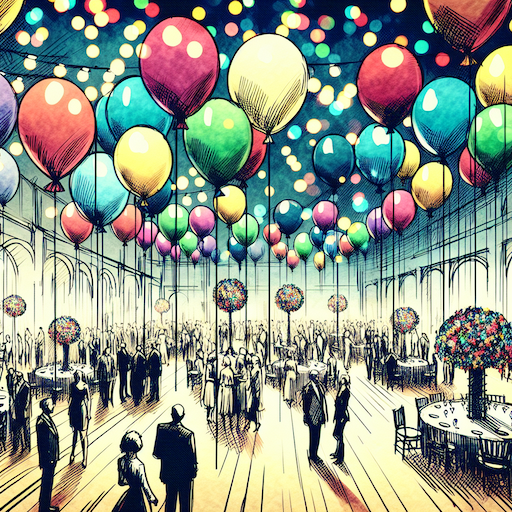 balloon party
 beautiful beach
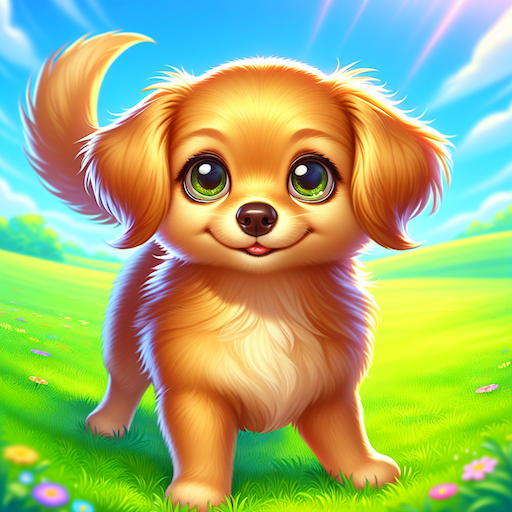 cute puppy dog
 happy cat
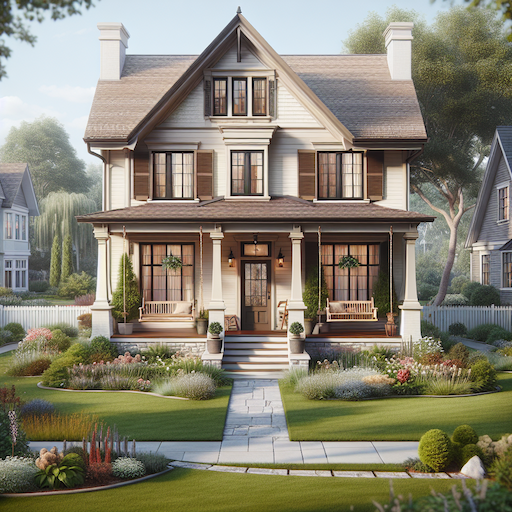 house
house