

Javascript Code
                        // Title: The Lowly Pirate of Onepice


// Creating the canvas element


// Getting the 2d context


// Drawing the background

ctx.fillStyle = '#FFF8DC'; // setting the canvas background color to cornsilk

ctx.fillRect(0, 0, 512, 512);


// Drawing the pirate hat

ctx.fillStyle = '#000000'; // setting the hat color to black

ctx.fillRect(180, 50, 150, 50); // drawing the base of the hat

ctx.beginPath();

ctx.moveTo(170, 50); // starting point of the hat triangle

ctx.lineTo(255, 10); // drawing the first side of the triangle

ctx.lineTo(340, 50); // drawing the second side of the triangle

ctx.closePath();

ctx.fill(); // filling the triangle shape


// Drawing the pirate's face

ctx.fillStyle = '#F4A460'; // setting the face color to sandy brown

ctx.beginPath();

ctx.arc(255, 175, 125, 0, Math.PI * 2); // drawing a circle for the face

ctx.closePath();

ctx.fill();


// Drawing the pirate's eyes

ctx.fillStyle = '#000000'; // setting the eye color to black

ctx.beginPath();

ctx.arc(215, 150, 20, 0, Math.PI * 2); // drawing the left eye

ctx.arc(295, 150, 20, 0, Math.PI * 2); // drawing the right eye

ctx.closePath();

ctx.fill();


// Drawing the pirate's nose

ctx.fillStyle = '#FF4500'; // setting the nose color to orange red

ctx.beginPath();

ctx.moveTo(255, 175); // starting point of the nose

ctx.lineTo(230, 210); // drawing the left side of the nose

ctx.lineTo(280, 210); // drawing the right side of the nose

ctx.closePath();

ctx.fill();


// Drawing the pirate's mouth

ctx.strokeStyle = '#000000'; // setting the mouth color to black

ctx.lineWidth = 2;

ctx.beginPath();

ctx.arc(255, 230, 60, Math.PI * 0.2, Math.PI * 0.8); // drawing the smiley curve

ctx.stroke();


// Drawing the pirate's body

ctx.fillStyle = '#000000'; // setting the body color to black

ctx.fillRect(200, 275, 110, 180); // drawing the body shape


// Drawing the pirate's legs

ctx.fillRect(210, 455, 25, 55); // drawing the left leg

ctx.fillRect(275, 455, 25, 55); // drawing the right leg


// Drawing the pirate's arms

ctx.fillRect(135, 300, 75, 25); // drawing the left arm

ctx.fillRect(300, 300, 75, 25); // drawing the right arm


// Drawing the pirate's sword

ctx.fillStyle = '#C0C0C0'; // setting the sword color to silver

ctx.beginPath();

ctx.moveTo(90, 320); // starting point of the sword handle

ctx.lineTo(135, 320); // drawing the handle

ctx.lineTo(135, 380); // drawing the blade

ctx.lineTo(160, 380); // drawing the tip of the blade

ctx.lineTo(90, 320); // closing the sword shape

ctx.closePath();

ctx.fill();


// Drawing the pirate's peg leg

ctx.fillStyle = '#8B4513'; // setting the peg leg color to saddle brown

ctx.beginPath();

ctx.moveTo(210, 510); // starting point of the peg leg

ctx.lineTo(240, 510); // drawing the peg leg

ctx.lineTo(240, 470); // drawing the bottom of the peg leg

ctx.lineTo(210, 470); // closing the peg leg shape

ctx.closePath();

ctx.fill();


// Drawing the pirate's parrot

ctx.fillStyle = '#FF0000'; // setting the parrot color to red

ctx.beginPath();

ctx.arc(430, 100, 40, 0, Math.PI * 2); // drawing the parrot's body

ctx.closePath();

ctx.fill();


ctx.fillStyle = '#000000'; // setting the parrot's eye color to black

ctx.beginPath();

ctx.arc(415, 85, 10, 0, Math.PI * 2); // drawing the left eye

ctx.arc(445, 85, 10, 0, Math.PI * 2); // drawing the right eye

ctx.closePath();

ctx.fill();


ctx.fillStyle = '#FFFF00'; // setting the parrot's beak color to yellow

ctx.beginPath();

ctx.moveTo(430, 105); // starting point of the beak

ctx.lineTo(430, 130); // drawing the beak

ctx.lineTo(450, 120); // closing the beak shape

ctx.closePath();

ctx.fill();


// Drawing the pirate's treasure chest

ctx.fillStyle = '#8B4513'; // setting the treasure chest color to saddle brown

ctx.fillRect(370, 350, 100, 75); // drawing the main chest


ctx.fillStyle = '#FFD700'; // setting the treasure color to gold

ctx.beginPath();

ctx.moveTo(370, 350); // starting point of the top treasure

ctx.lineTo(420, 310); // drawing the first side of the top treasure

ctx.lineTo(470, 350); // drawing the second side of the top treasure

ctx.closePath();

ctx.fill();


// Drawing the pirate's treasure map

ctx.fillStyle = '#FFF8DC'; // setting the treasure map color to cornsilk

ctx.fillRect(230, 330, 100, 50); // drawing the map base


ctx.strokeStyle = '#8B4513'; // setting the map outline color to saddle brown

ctx.lineWidth = 3;

ctx.beginPath();

ctx.moveTo(230, 330); // starting point of the map outline

ctx.lineTo(245, 305); // drawing the first side of the map outline

ctx.lineTo(355, 305); // drawing the second side of the map outline

ctx.lineTo(370, 330); // drawing the third side of the map outline

ctx.closePath();

ctx.stroke();


// Drawing the pirate's flag

ctx.fillStyle = '#000000'; // setting the flag color to black

ctx.fillRect(50, 275, 20, 200); // drawing the flag pole


ctx.fillStyle = '#FF0000'; // setting the flag color to red

ctx.beginPath();

ctx.moveTo(70, 275); // starting point of the flag

ctx.lineTo(220, 275); // drawing the first side of the flag

ctx.lineTo(120, 175); // drawing the top of the flag

ctx.closePath();

ctx.fill();


// Drawing the pirate's ship

ctx.fillStyle = '#8B4513'; // setting the ship color to saddle brown

ctx.fillRect(20, 425, 200, 80); // drawing the ship base


ctx.fillStyle = '#000000'; // setting the ship details color to black

ctx.beginPath();

ctx.moveTo(20, 425); // starting point of the ship details

ctx.lineTo(120, 425); // drawing the first side of the ship details

ctx.lineTo(120, 505); // drawing the second side of the ship details

ctx.lineTo(20, 505); // drawing the third side of the ship details

ctx.closePath();

ctx.fill();


ctx.fillStyle = '#FFFFFF'; // setting the ship sail color to white

ctx.beginPath();

ctx.moveTo(120, 425); // starting point of the sail

ctx.lineTo(220, 425); // drawing the first side of the sail

ctx.lineTo(170, 375); // drawing the top of the sail

ctx.closePath();

ctx.fill();


// Drawing the pirate's caption

ctx.font = '24px Arial'; // setting the caption font

ctx.fillStyle = '#000000'; // setting the caption color to black

ctx.textAlign = 'center';

ctx.fillText('The Lowly Pirate of Onepice', 512 / 2, 490); // drawing the caption


// Adding a funny comment at the end

// Yarrr, this pirate be searchin' for the One Piece, but he be havin' a hard time findin' it low!
AI
Model: gpt-3.5-turbo-16k-0613
Time: 39 seconds
Prompt Tokens: 431
Completion Tokens: 1762
Total Token Cost: 2193


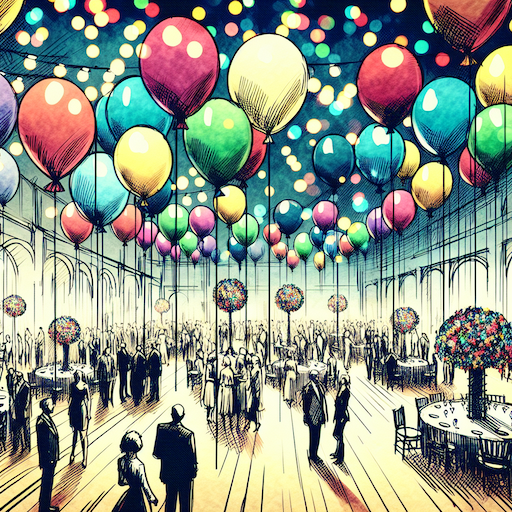 balloon party
 beautiful beach
 cute puppy dog
 happy cat
 house
house